Components
Notification Patterns

Alert Banner 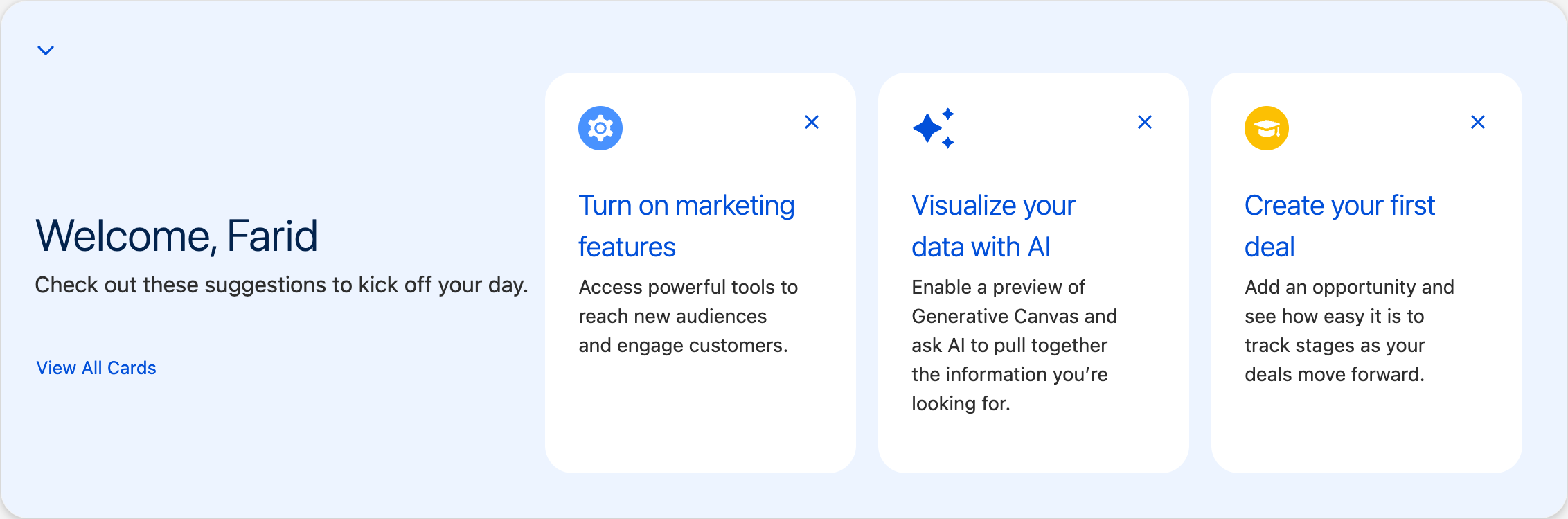
Alert Spotlight to Discuss 
Feature Popover Notification to Discuss 
Notification Tray 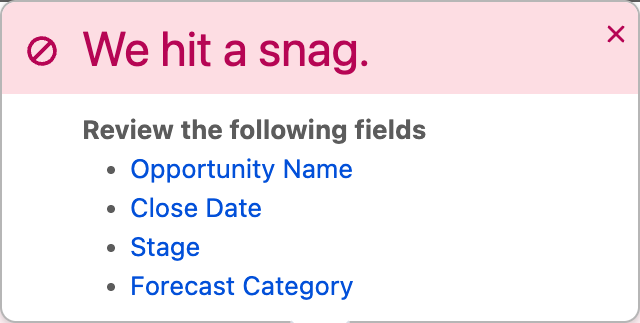
Edit Error Popover 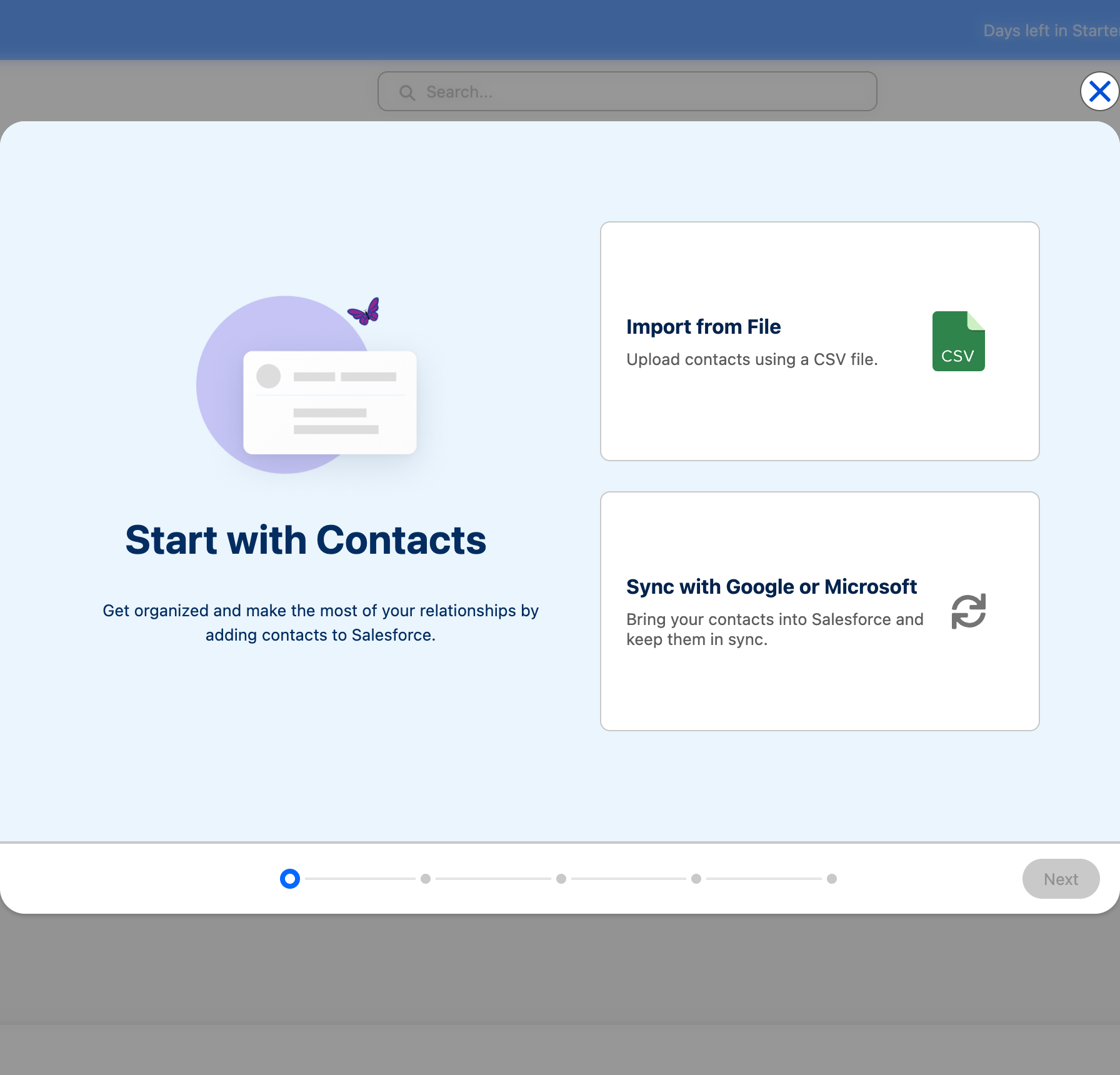
Import Modal similar to Welcome Mat Timepicker
An autocomplete text input to select a time.
Textarea
Enter and edit longer blocks of plain multi-line text.
Tiles
A tile is a contained group of related information users to scan and interact with key information.
Spinners
An animated indicator that conveys loading or processing.
Radio Button Group
A group of buttons used for selecting a single item.
Select
A dropdown menu, built using native HTML, presents a list of selectable options.
Rich Text Editor
A versatile textarea input with a customizable toolbar.
Progress Indicator
Visually represents the steps in a user-driven process.
Vertical Navigation
A vertical list of links that helps users navigate within a section of an application.
Dueling Picklist
The dueling picklist lets you move items between two lists, making it easy to select and organize options.
Map
Displays a map with markers for one or more locations.
Input
A data entry element that allows users to input text, numbers, or other data into a form input field.
Form Element
Provides structure, labels, helptext, and validation for input components.
File Selector
Upload files from a local device to Salesforce applications.
Datepicker
The datepicker makes it easy to select dates from a calendar for date-related input fields.
Combobox
Combines an input field and a dropdown listbox, designed to allow users to select from a list of options.
Dynamic Icons
Animated icons that respond to user interactions and system states.
Checkbox Toggle
A toggle enabling users to switch a feature or capability on and off.
Checkbox Button
A checkbox button selects and deselects a single option.
Menus
A dropdown list of actions that users can select from.
Datetime Picker
The datetime picker combines a calendar and time selector to specify a date and time.
Data Table
An enhanced version of an HTML table used to display related information.
Color Picker
Color picker lets users choose from a set of colors or enter their own color.
Accordion
An accordion organizes content into sections you can open and close. ### Anatomy Each accordion section is made up of two primary elements, the header and body, with various elements within them: Accordion Section Header: The element that expands or collapses the section content. Accordion Section Body: The element that reveals its content as the header expands. The body can hold almost anything—text, images, tables, or other components. Chevron: Visual indicator that shows whether an accordion section is expanded or collapsed. Accordion Section Title: The title describes the content in the accordion body. Action Overflow Menu: Used for additional actions to be taken. (Optional) Divider: The horizontal divider line between accordion sections.
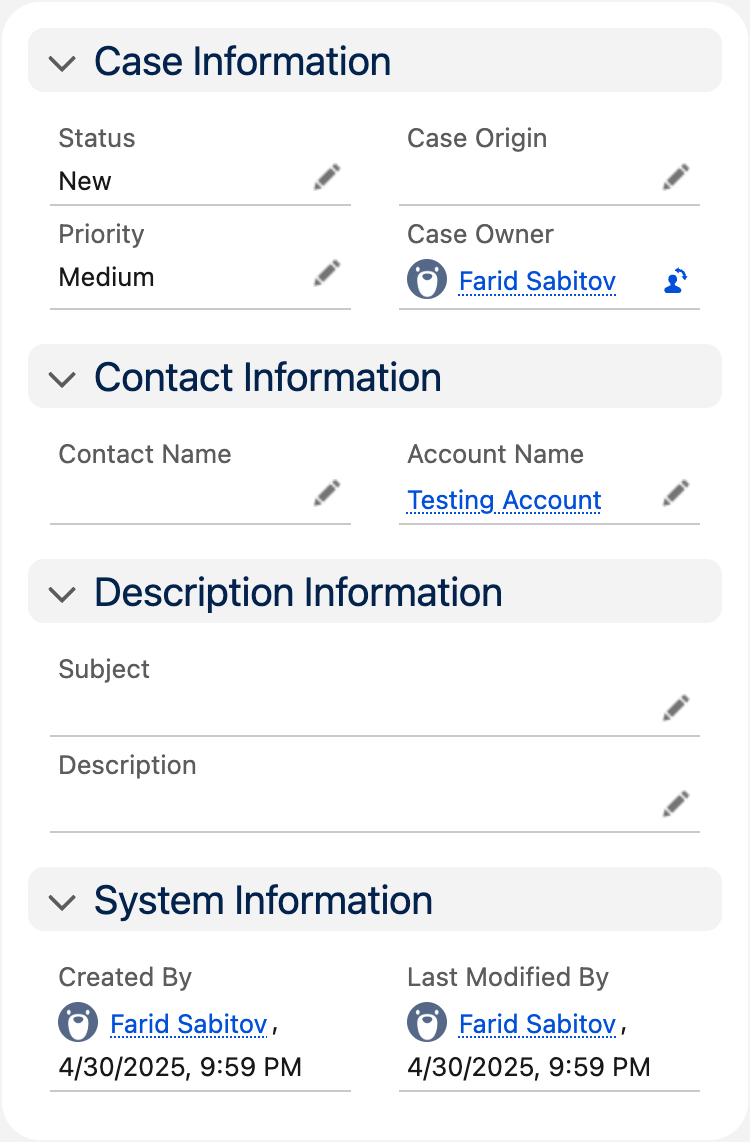
Case Accordion 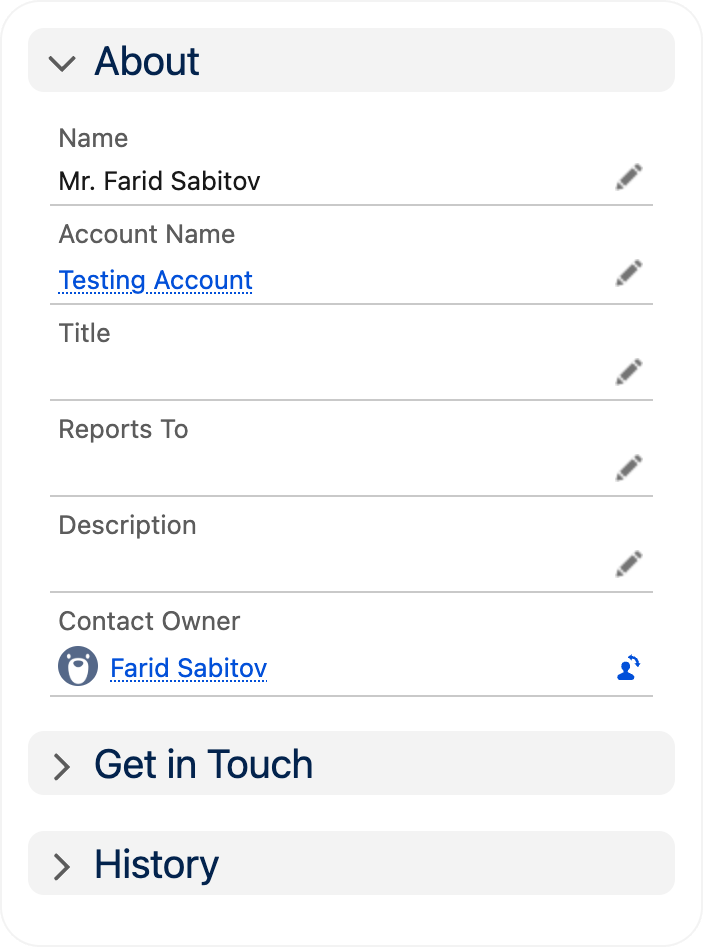
Contact Accordions 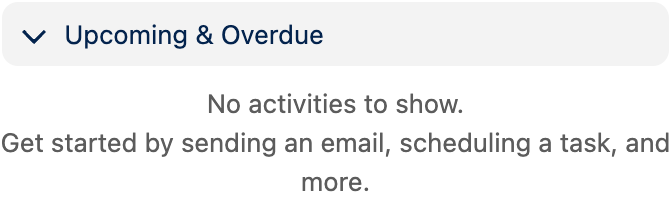
Upcoming & Overdue Badges
Visually highlight a small, relevant piece of information, like status or category. ### Anatomy Icon: Badges may or may not include a utility icon either before or after the text label. Preceding Icon (optional) Text Label: This is the core information inside the badge. Background Color: This varies by status or category (for example, blue for info, red for error). Trailing Icon (optional)

All Badges Avatar
Represents a person or entity as an image, icon, or initials in a circular frame. ### Anatomy Container Icon Initials Image

Case Preview 
Icons developed as Avatars 
Record Avatars 
All Avatars Button Groups
Button groups organize a series of related actions, making it easier for users to quickly find and perform tasks. ### Anatomy Button Container: Holds all buttons in a unified layout. Button Icons: Can display icons next to or instead of text labels. Dropdown Indicator: Indicates a split button option.

Accounts Button Group 
Button Groups on Leads Page 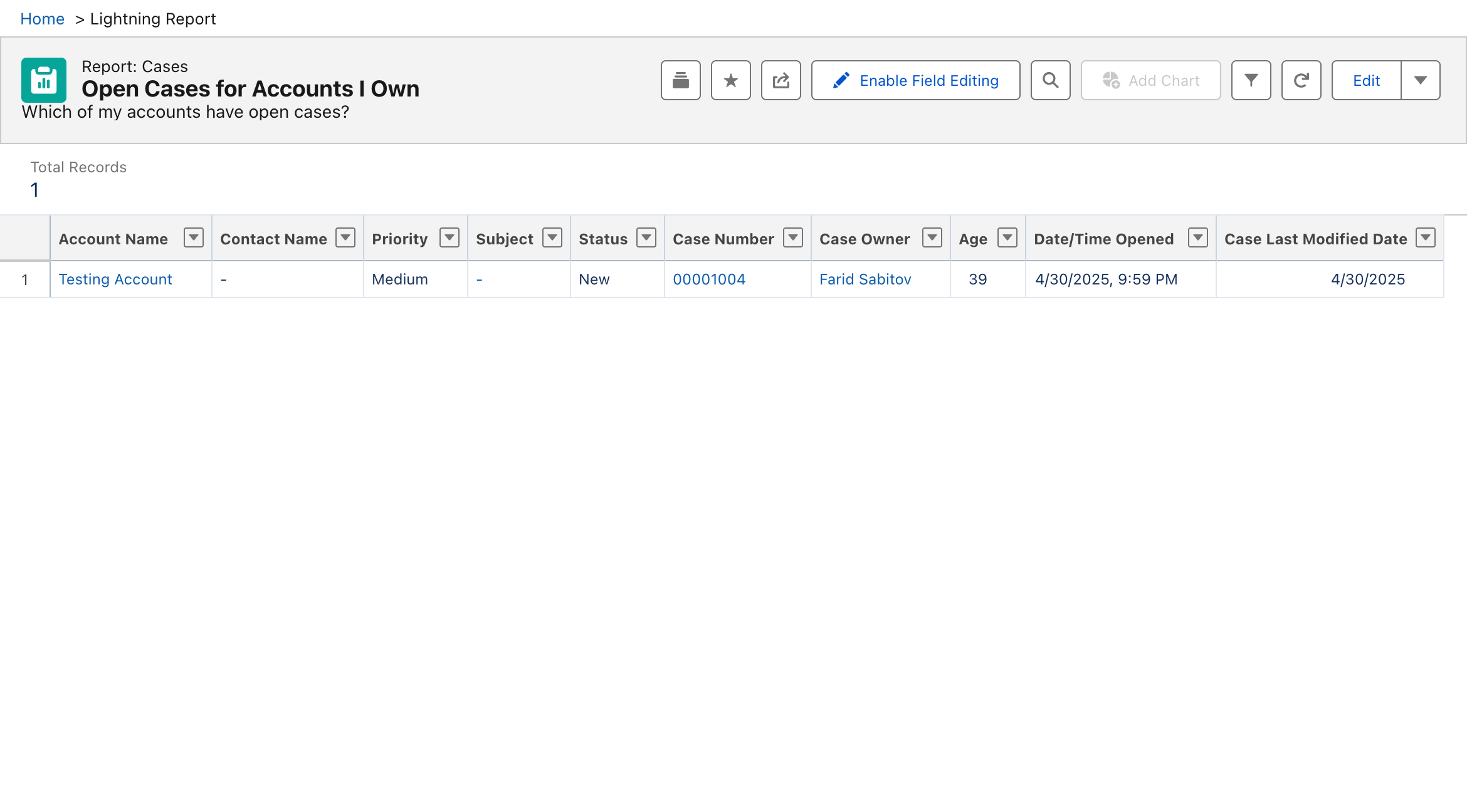
Analytics Iframe Legacy 
Disabled Icon Button Groups Button Groups Button Icons
A compact, interactive icon-only button that triggers an action.

Dropdown icon button to discuss 
Pin Icon Button 
List View Controls 
Refresh Icon Button 
Header Icon Button Progress Ring
Tracks the completion of a task by filling a circular progress indicator.
Modals
Displays content in a dialog positioned over the page, requiring users to interact with it before returning to the underlying page.
Icons
Icons are small visual elements that represent actions, objects, or statuses. They help users quickly identify and interact with UI elements.
Pills
Pills are compact, interactive labels that represent selected items.
Global Search Pattern
Search is the most used feature in Salesforce, and users expect it to be fast, intelligent, and simple. With global search, users can get right to records and apps by entering simple keywords or using powerful advanced search features.

Search Tabs
Tabs allow users to switch between different sections of related content within a single view.

Tabs Header Builder Patterns
The builder header persists at the top of the window. It contains navigation elements and file information.

Global Header Slider
Allows users to select a value from a defined range using a draggable handle on a track.
Tree
A list that displays nested data in a parent-child relationship. Branches can be expanded or collapsed.
Progress Bar
A progress bar component communicates to the user the progress of a particular process.
Tree Grid
A hierarchical data table that allows users to expand and collapse nested rows to view and manage structured information efficiently.
Scoped Tabs
Enables users to switch between different nested sections of related content within a single view.
Radio Group
Allows users to select one option from a set of predefined options.
Prompt
Displays content in a modal dialog positioned over the page, requiring users to interact with it before returning to the underlying page.
Tooltip
Show helpful information in a popup when users hover over, focus on, or click an item.
Carousel
A container that allows users to navigate through multiple pieces of featured content. ### Anatomy Image: Where the carousel displays the main image for the current slide. Slide Title: Title for the current slide. Slide Description: Description for the current slide. Auto-play Button: Turns autoplay on or off. Image Indicator: Shows the current position within the set of items and allows for navigation via mouse or keyboard interaction.
Cards
Containers used to group related information and actions. ### Appearance Cards use a white container with rounded corners, without shadows or outlines. They appear on a background that uses neutral 95 or darker. Header: The top section of a card component. It can contain a title, icon, or buttons for quick context. Title: Summarizes content, helping users quickly identify the card's purpose. Icon: Provides visual cues and supports quick recognition. Button/Button Menu: Provides quick access to primary actions related to the card’s content. Body: The main content area that displays detailed information, such as text, images, or components. Footer: The bottom section includes secondary actions, links, or supplementary information.
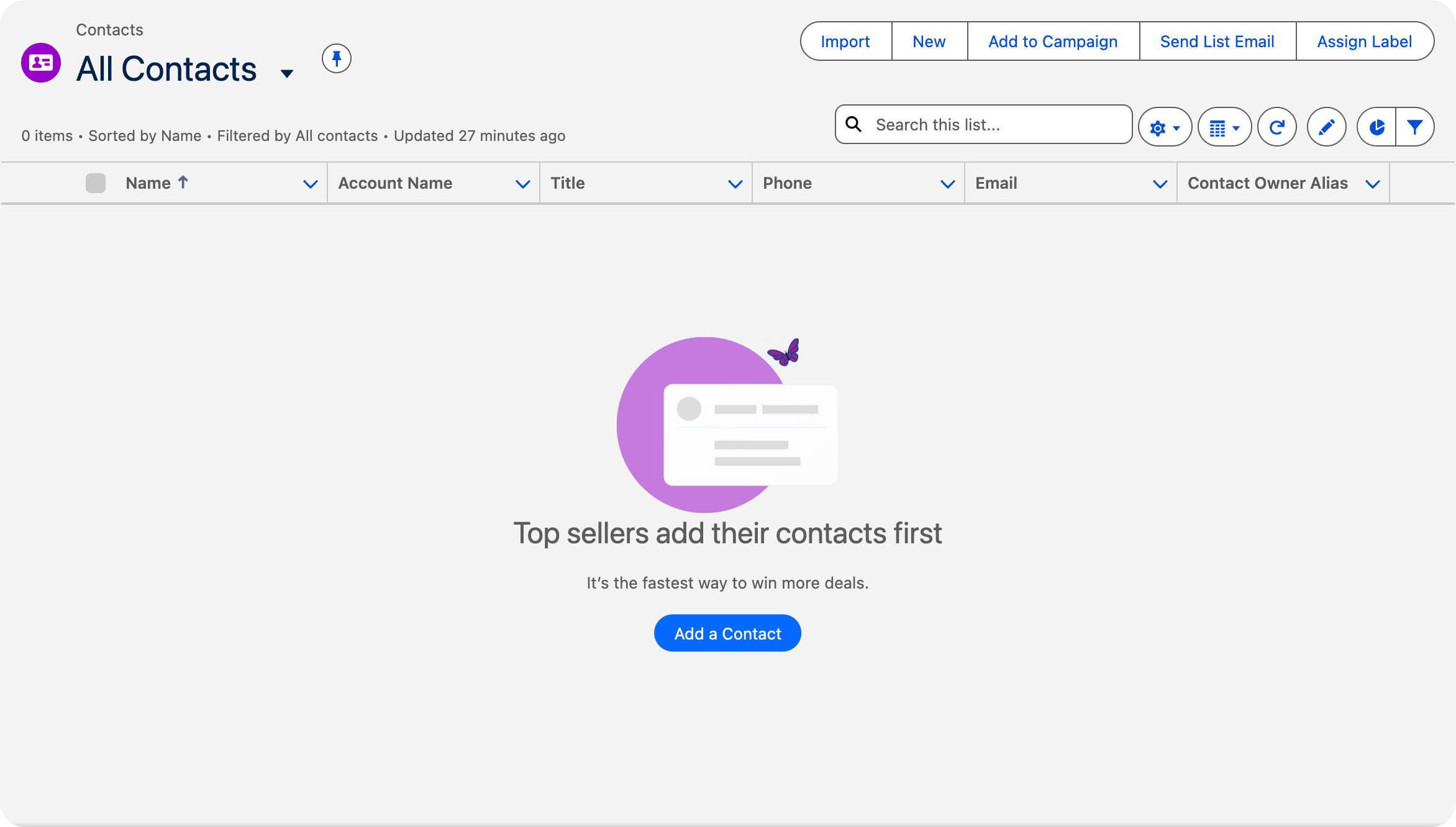
All Cards 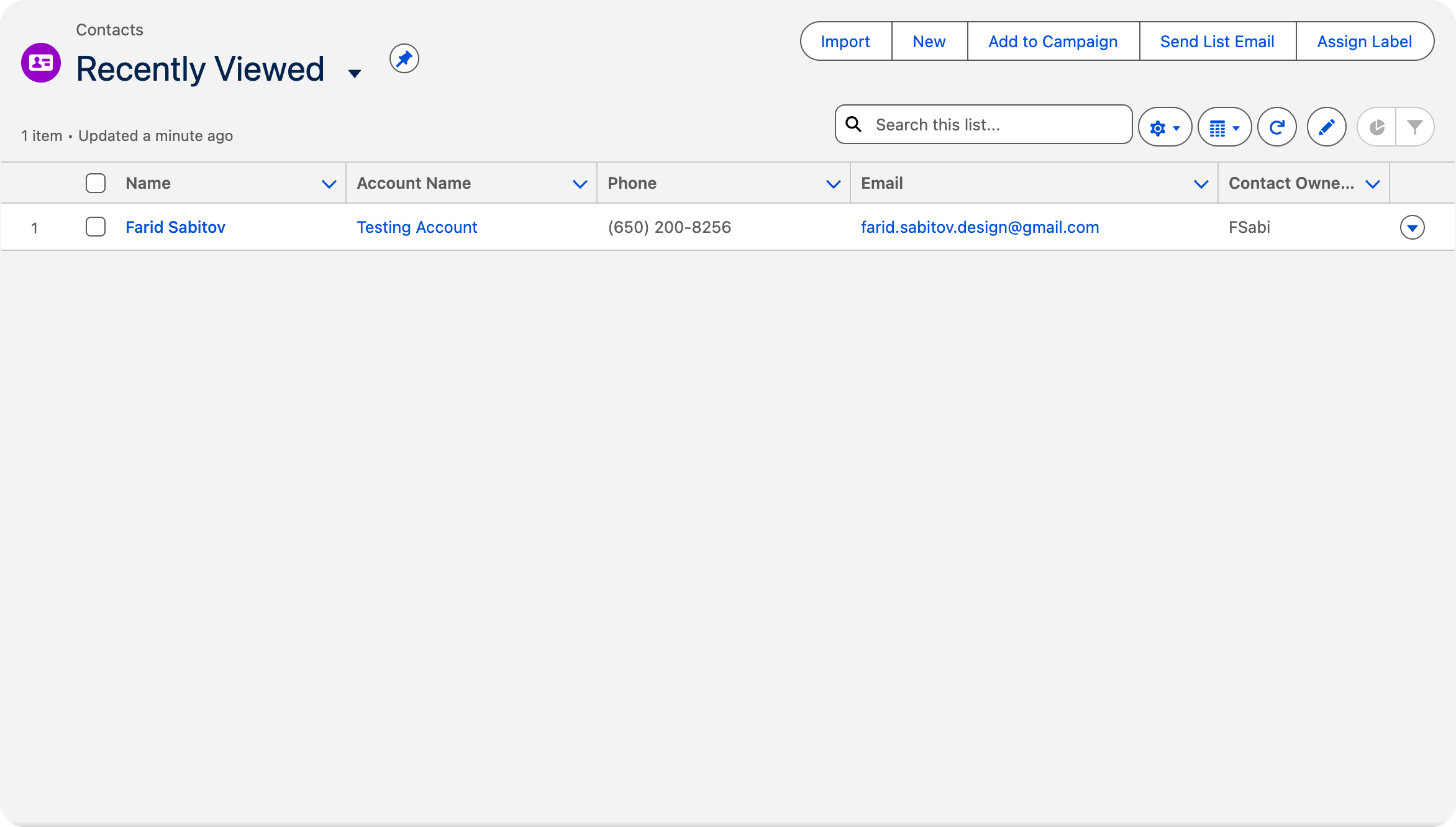
Contacts Card 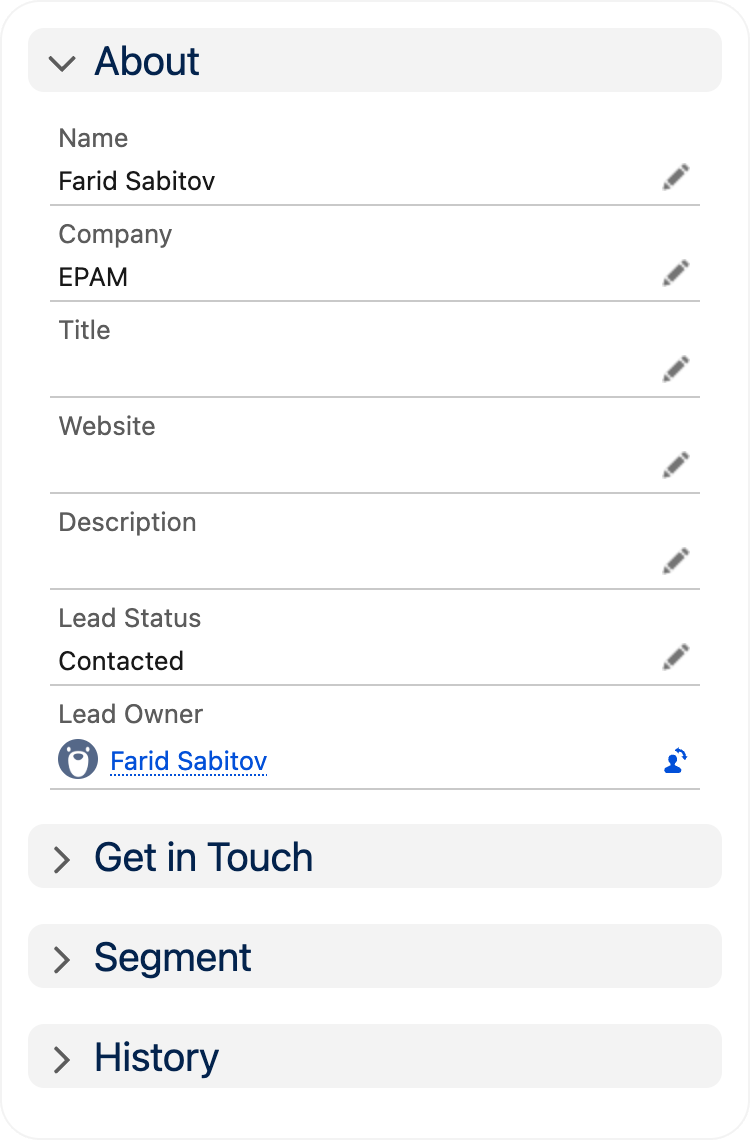
Profile Cards Checkbox
Used to show a selected, unselected, or indeterminate state. ### Anatomy Box: Show selection state. Label: Text description that defines the option. Checkboxes can be used without a label in datatables to select the row. Required Indicator: (optional) Shows that users must select an option.

All Checkboxes Breadcrumbs
Breadcrumbs display a trail of links to help users understand where they are in a content hierarchy and easily navigate back to previous pages. ### Anatomy Menu: Use the overflow button icon to condense the breadcrumb trail. When the button is clicked, a dropdown menu opens a list of the hidden breadcrumb links to select. Overflow: Use the overflow button icon to condense the breadcrumb trail. When the button is clicked, a dropdown menu opens a list of the hidden breadcrumb links to select. Chevron: Breadcrumbs are evenly spaced with chevron icons between them to show the path to the current page. Breadcrumb: An individual item or link within the breadcrumbs trail. Breadcrumbs: Each navigation node is composed of an individual breadcrumb that is combined to create breadcrumbs.

All Breadcrumbs Toast
Provides feedback to users in the form of a brief, non-blocking message overlay. ### Anatomy Icon: Represents the type of message (success, error, warning, info). Message Text: Provides the main context of the toast message. Detail Text: Detailed message or instructions related to the toast message. (optional) Text Link: Enables users to navigate to resources and help docs. Button Icon: Enables users to close the toast manually.

Commerce Toast Buttons
A compact UI element with a text label that triggers an action when clicked. ### Anatomy Buttons in Salesforce have a text label, an optional icon, and different visual states. They contain the elements described here. Container: The contents of the button are contained within rounded corners. Label: Text that describes the main action or intent of the button. Left Icon (optional): Although SLDS provides several categories of icons, only the utility category can be used. Right Icon (optional): Although SLDS provides several categories of icons, only the utility category can be used.

All Buttons 
Base Button 
Neutral Button